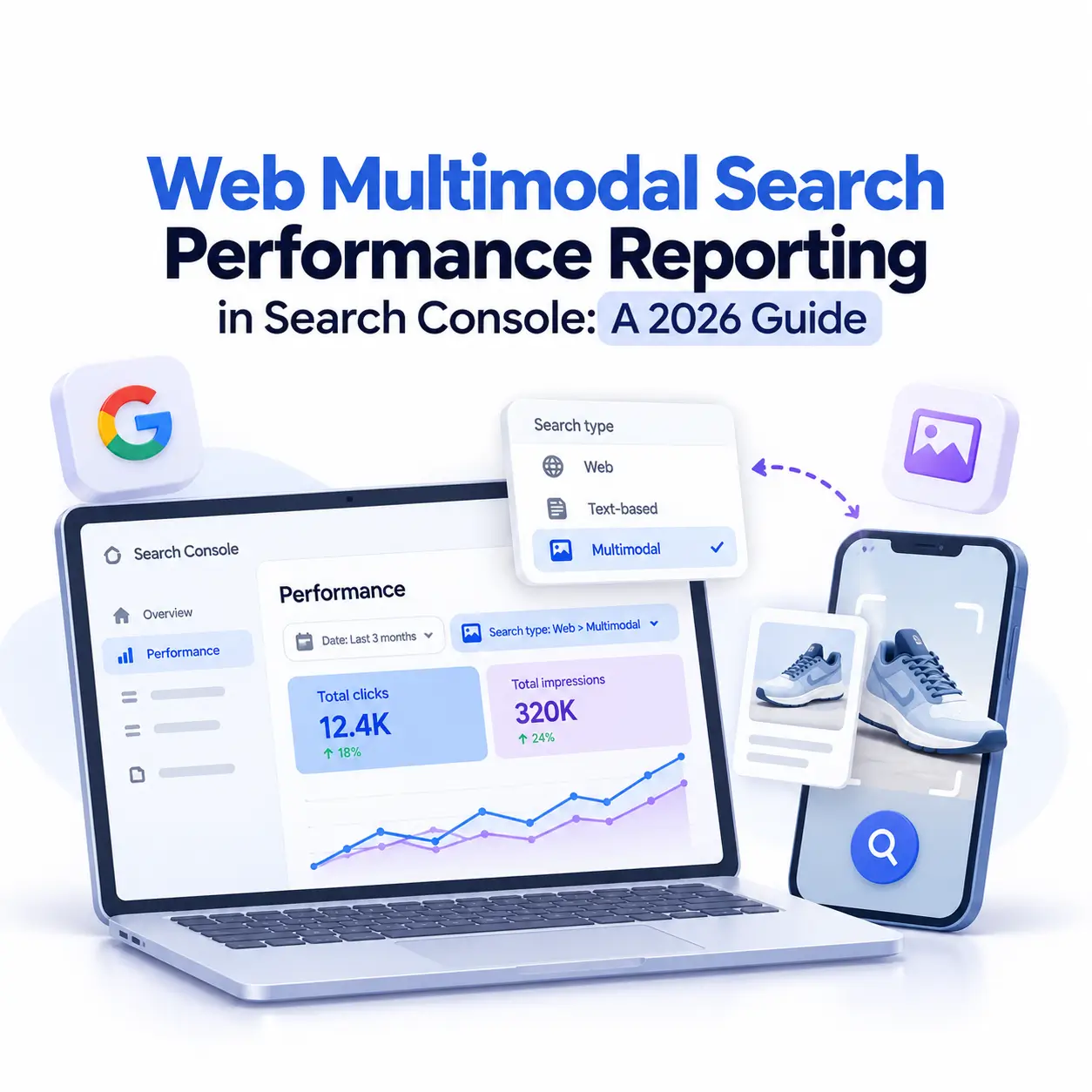
For years, site owners could see which typed queries brought people to their pages, but not what happened when someone searched with a photo. That changed on September 24, 2026, when Google announced multimodal search reporting in Search Console. The new filter shows how often your pages appear when a search involves an image, such as a Google Lens scan or a screenshot.
This guide covers what the reporting includes, where to find it, what data it hides, how it relates to the Generative AI performance reports, and how to turn it into a baseline you can act on. It is written for intermediate SEOs and site owners who already know their way around the Performance report.
What Is Web Multimodal Search Reporting?
Multimodal search reporting separates web searches that involve an image from those typed as text. Google describes web multimodal as results triggered by a query that uses an image, photo, or screenshot. The change matters because image-led searching is becoming a normal habit: at I/O in May, Google also announced a search box that accepts images and files alongside text.
What Counts as a Multimodal Search?
The category covers Google Lens, Circle to Search on Android, images or screenshots uploaded to Google Search, and Chrome’s right-click option to search an image. If a person starts with a picture rather than words, the search is a candidate for this bucket.
Text-Based vs Multimodal

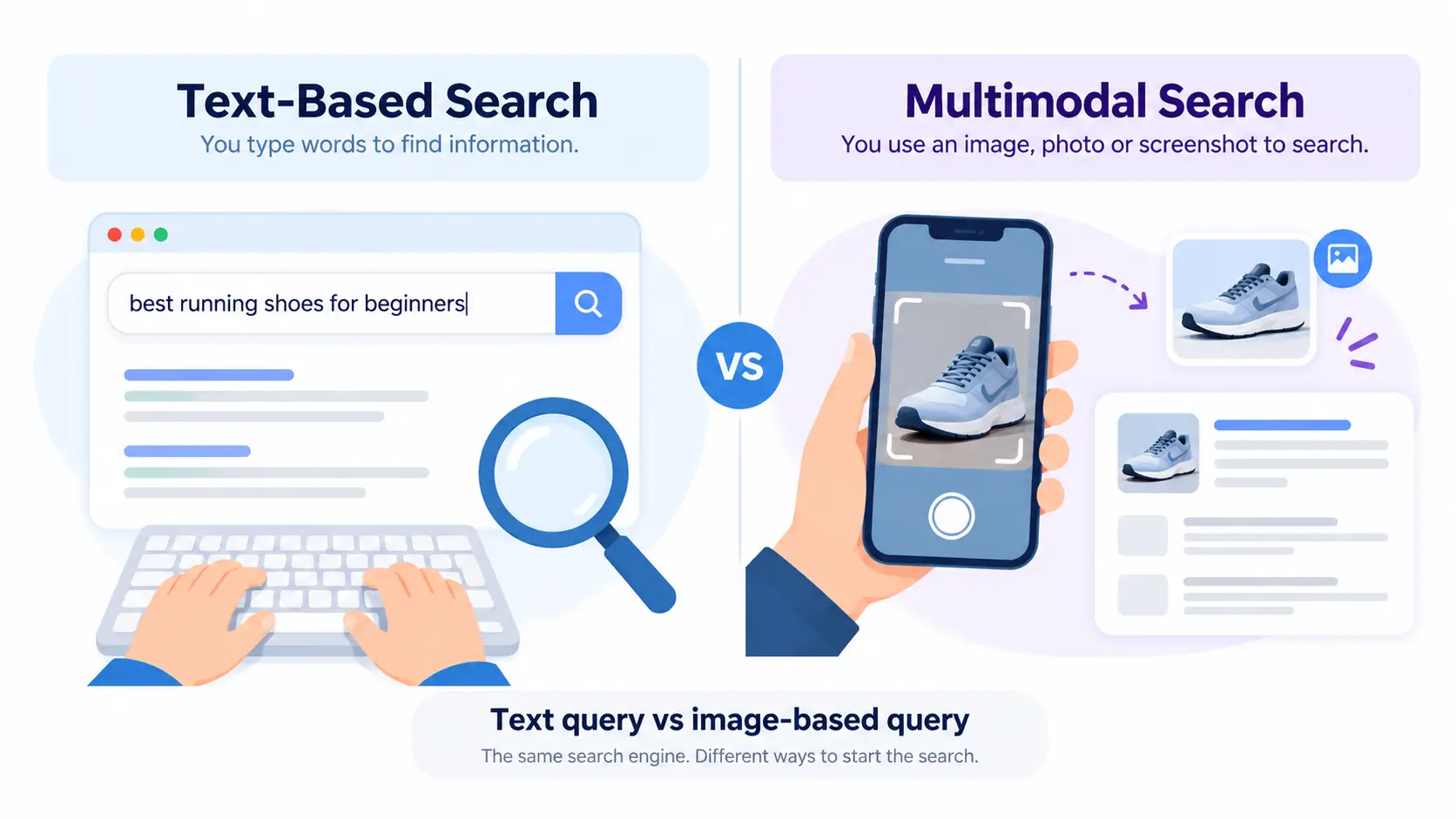
In the Performance report, the Web search type now has two nested options: Text-based and Multimodal. This is a split of an existing search type, not a brand-new report, which keeps the data inside the workflow you already use.
Why It Describes the Input, Not the Result
The existing Image, Video, and News types describe where a result appeared, such as the Images tab. Multimodal describes how the search began. It is not a count of people viewing your product photography, and a multimodal search can still return an ordinary web result.
How to Find and Use the Multimodal Filter
Where Is the Multimodal Filter in Search Console?
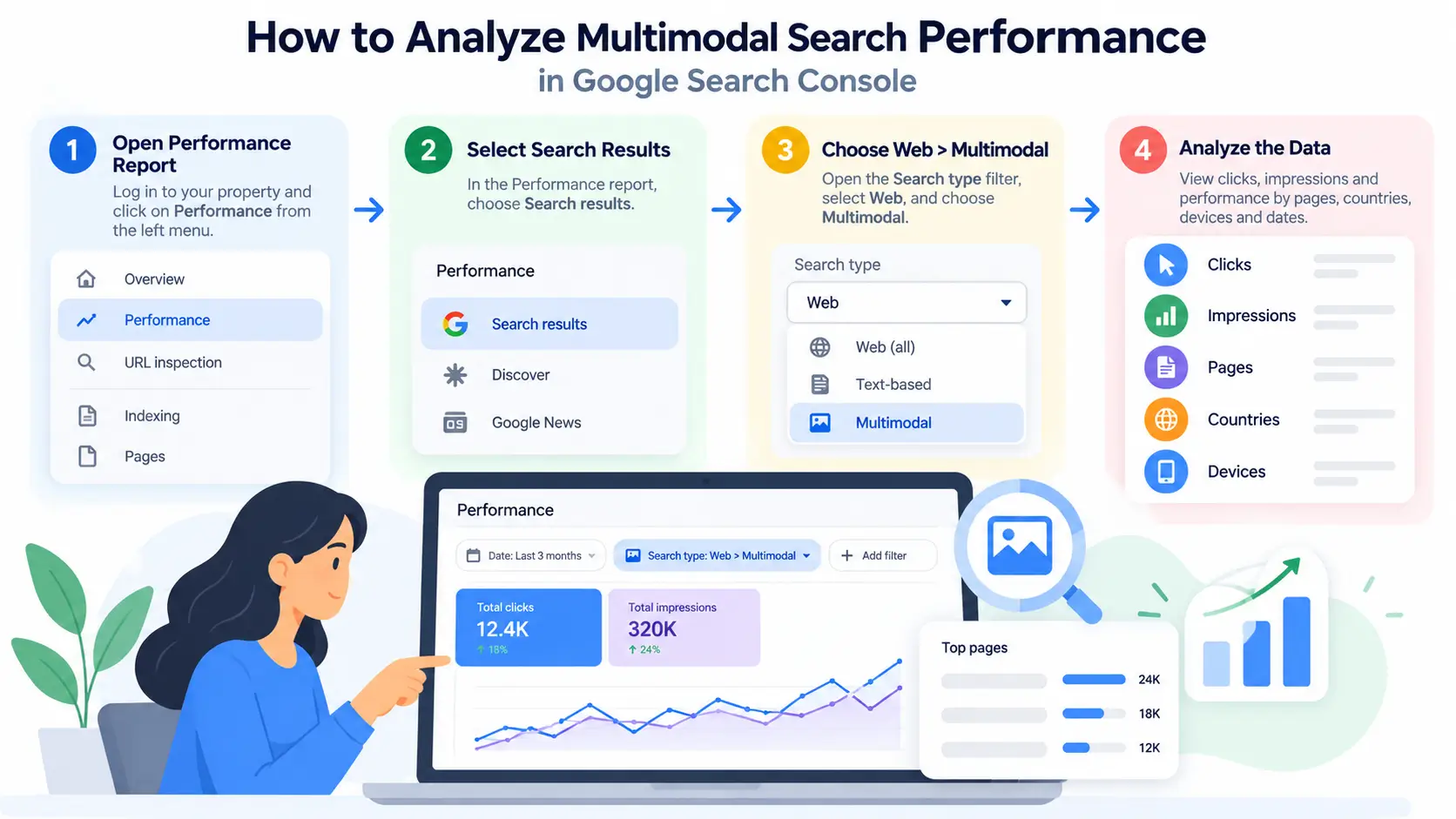
Open your property, go to Performance, then Search results. Open the Search type filter, choose Web, and select Multimodal. Use the same date range you use everywhere else so comparisons stay fair.
Using It in the Search Results Report
Once applied, you can examine clicks and impressions by page, country, and device. Start with the Pages tab to see which URLs appear in image-led searches.
Using It in the Generative AI Features Report
The multimodal filter also appears in the Generative AI features report. Apply it there as well, and treat each report’s view separately rather than assuming the two will match.
Comparing Text-Based and Multimodal
The Compare tab lets you place text-based and multimodal performance side by side. A page that draws a much larger share of its visibility from multimodal searches than your site average deserves a closer look at its images.
Why Don’t I See the Filter Yet?
Google began a global rollout, and staged releases are normal for Search Console. The Generative AI reports followed the same pattern: limited access first, wider availability later. If the filter is missing, check back in a few days rather than assuming something is wrong with your property.
What Data You Get, and What You Don’t
Available Dimensions
Expect clicks and impressions broken down by pages, countries, devices, and dates. That is enough to see which content surfaces in image-led searches and where those searches happen.
Can You See the Queries?
No. Selecting multimodal removes the query dimension, and the image itself stays hidden. You can see which pages showed up and how often, but not what the person typed or photographed. That makes landing-page patterns your main signal.
Is There API or BigQuery Access?
At launch, early reports said the Search Console API and the BigQuery bulk export did not show multimodal as a separate view. That means dashboards and tools built on those sources can’t isolate it yet. Verify the current status in Google’s documentation before building anything, and export from the interface when you need a record.
Preliminary Data and Other Caveats
Google describes the most recent performance figures as preliminary and subject to change. Don’t judge an edit using the newest data points, and note any reporting limitations rather than reading missing data as proof of low demand.
Search Console Generative AI Update: How It Connects to Multimodal Reporting
Recap: The June 2026 Generative AI Reports
On June 3, 2026, Google launched dedicated Generative AI performance reports for Search and Discover. The Search view covers features such as AI Overviews and AI Mode, with impressions broken down by pages, countries, devices, and dates. That data also remains inside the overall Performance report. For the full breakdown, read our guide to the Search Console generative AI update.
Multimodal vs Generative AI Reports
The Generative AI report answers one question: how often did my URLs appear inside AI features? The multimodal filter answers a different one: how often did my pages appear when the search started with an image? Because the filter lives in both reports, the two views overlap rather than compete.
Exposure vs Visits
Both reports mainly establish exposure. A link appearing in an AI feature is not the same as a website visit, so pair Search Console with your analytics before drawing conclusions. Our Generative AI update guide explains how to read those impressions in context.
How to Interpret and Act on Multimodal Data
Google hasn’t published a playbook for acting on this data, so treat the steps below as practitioner suggestions, not official guidance.
Step 1: Establish a Baseline
Apply the multimodal filter, set a consistent date range, and record which pages receive impressions and clicks. Save the view or export it, along with the date range and the list of affected URLs. Without a baseline, any later change is a guess.
Step 2: Use the Multimodal Baseline Scorecard
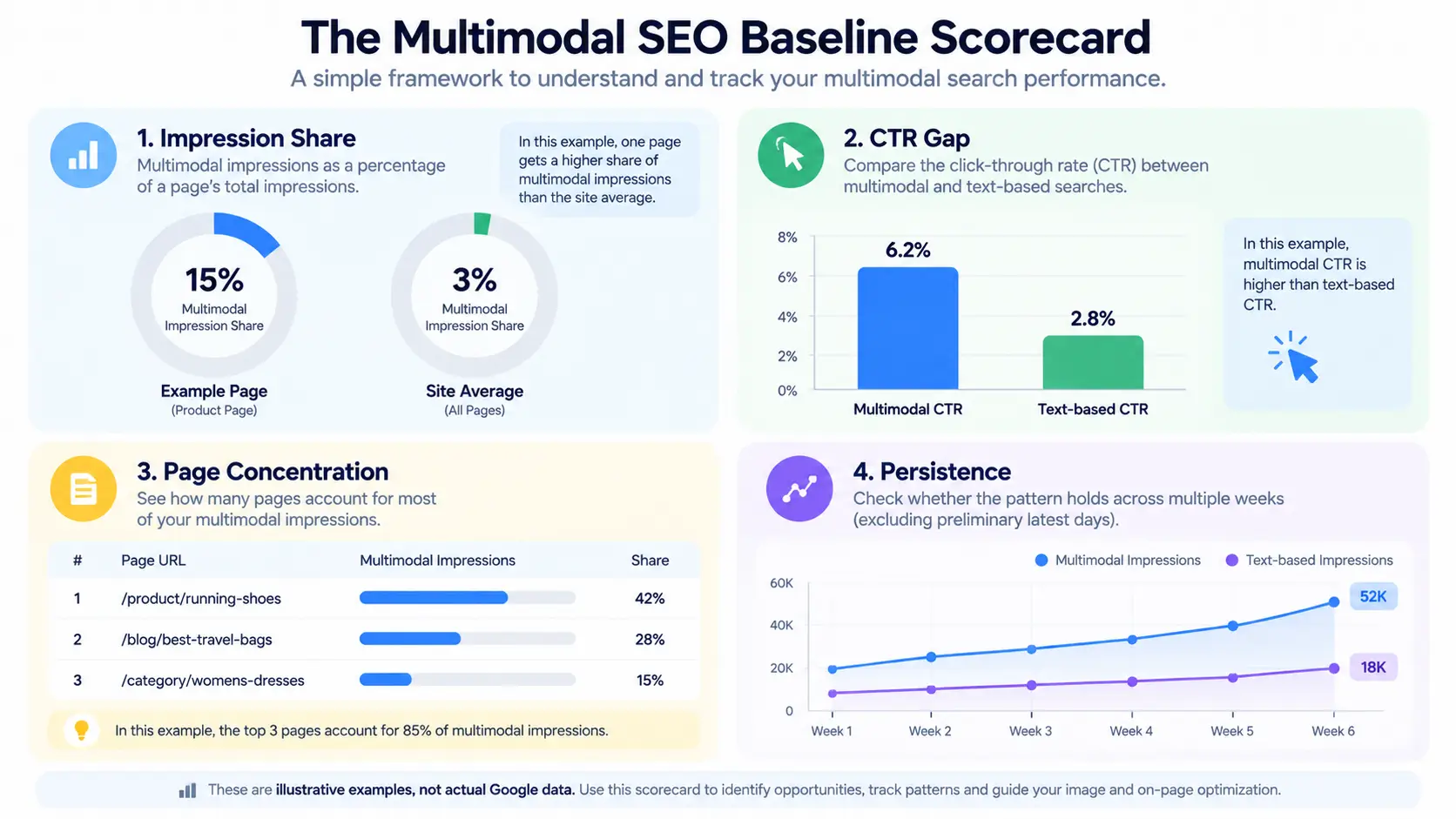
This is an original framework, not a Google method. Track four things using the Compare tab:
- Multimodal impression share: multimodal impressions as a percentage of a page’s total impressions.
- CTR gap: multimodal click-through rate versus text-based click-through rate.
- Concentration: how many pages account for most multimodal impressions.
- Persistence: whether the pattern holds across equivalent periods, excluding preliminary days.
For example, imagine a product page earns 15% of its impressions from multimodal searches while your site average is 3%. That gap, if it persists for several weeks, makes the page a strong candidate for review.
Step 3: Review Images and On-Page Context
For pages with an outsized multimodal share, review image quality, descriptive alt text, nearby explanatory copy, and how clearly the page identifies what is pictured. For product pages, check that specifications are complete and consistent.
What Not to Conclude
Search Console can show where attention may be worthwhile. It cannot diagnose a missing detail or prove that an edit will improve rankings. Treat early patterns as hypotheses, and retest over several weeks.
Frequently Asked Questions
What is multimodal search reporting in Search Console?
Multimodal search reporting is a Search Console filter that isolates web searches where an image was part of the query, such as Google Lens or Circle to Search. It sits under the Web search type alongside text-based, shows pages, clicks and impressions, and is available in both the Search results and Generative AI performance reports.
Which searches count as multimodal?
Google counts web searches that use an image, photo, or screenshot as part of the query. That includes Google Lens, Circle to Search on Android, image uploads to Google Search, and Chrome’s right-click “Search this image” option. It describes how the search was made, not whether your page contained images.
Can I see the queries behind multimodal searches?
No. Selecting multimodal removes the query dimension, so you can’t see search terms or the image used. You can still analyze performance by page, country, device, and date. Use landing-page patterns, not keywords, to judge which content surfaces in visual searches.
Is multimodal data available through the API or BigQuery?
Not at launch, based on early reports. Practitioners noted that the Search Console API and BigQuery bulk export don’t show multimodal as a separate view, so the data is UI-only for now. Check Google’s documentation for updates before building dashboards, and export from the interface when you need a record.
How is multimodal different from the Generative AI features report?
The Generative AI report measures impressions of your URLs inside AI Overviews and AI Mode, while the multimodal filter isolates searches started with an image. They overlap in the interface: the multimodal filter appears in both reports. Treat them as two lenses on exposure, not two separate traffic sources.
How should I start using multimodal data?
Establish a baseline first. Apply the multimodal filter, note which pages get impressions and clicks, and compare against text-based performance using the Compare tab over equivalent date ranges. Ignore the preliminary latest days, save your view or export, and only then consider image or content updates for pages that stand out.
Conclusion
Multimodal search reporting gives site owners their first official view of image-led search, even without queries. The data is limited: pages, countries, devices, and dates, with no API access at launch. Still, it is enough to start learning which of your pages show up when people search with a camera.
Ready to take the next step in your digital marketing career? Explore our course and start building industry-relevant skills today.


