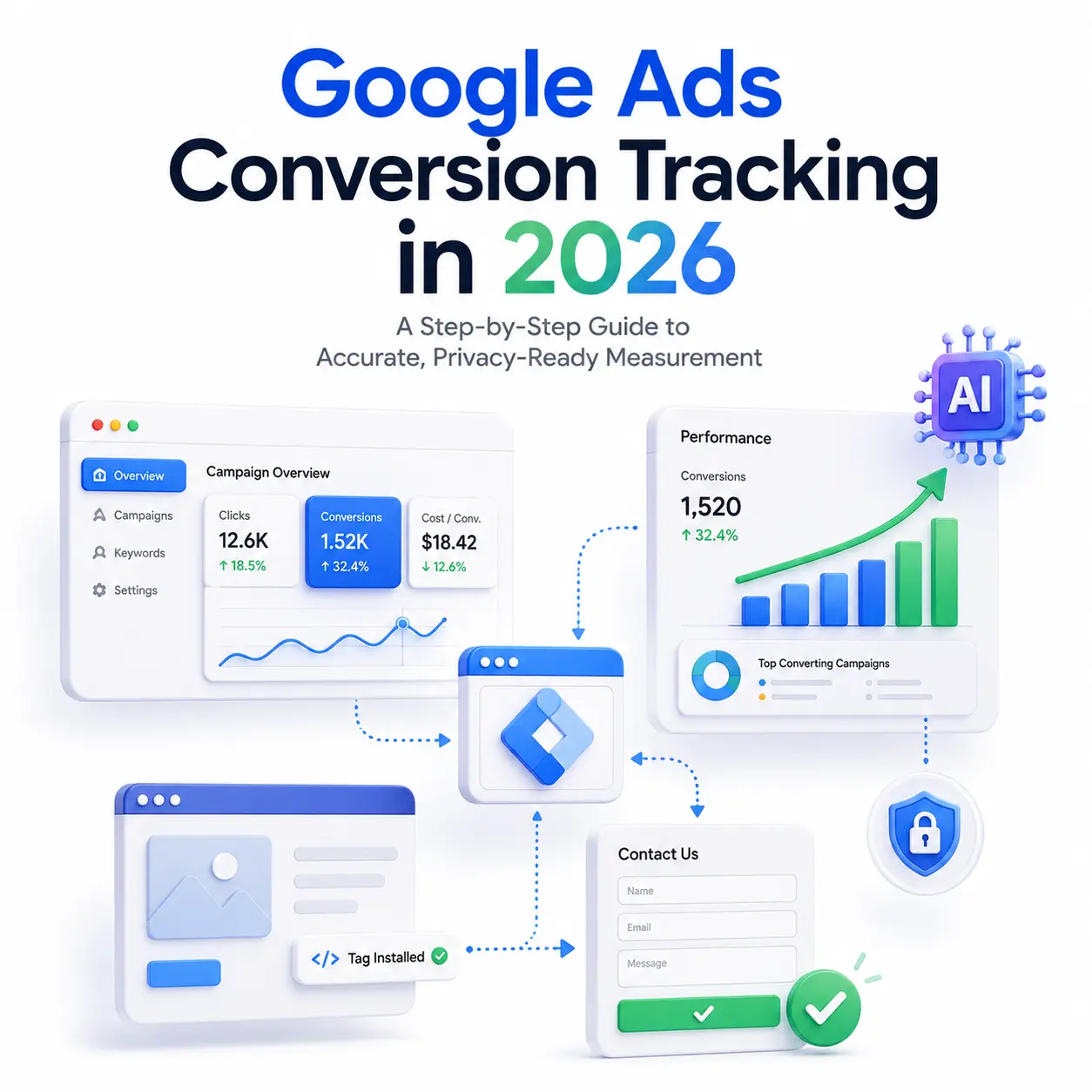
Conversion tracking is the single most important setup decision in any Google Ads account and in 2026, it is also the most commonly broken. Between browser cookie restrictions, ad blockers used by roughly a third of internet users, and conversion paths that now span multiple devices, many advertisers are optimizing budget on data that captures only 50–70% of their real conversions. If Smart Bidding is learning from incomplete signals, every dollar of optimization is working against you.
The good news: a correct setup is entirely achievable in an afternoon. This guide walks you through creating a conversion action, installing the tracking tag, enabling enhanced conversions, staying compliant with Consent Mode, and most importantly verifying that the whole thing actually works.
What Changed in 2026
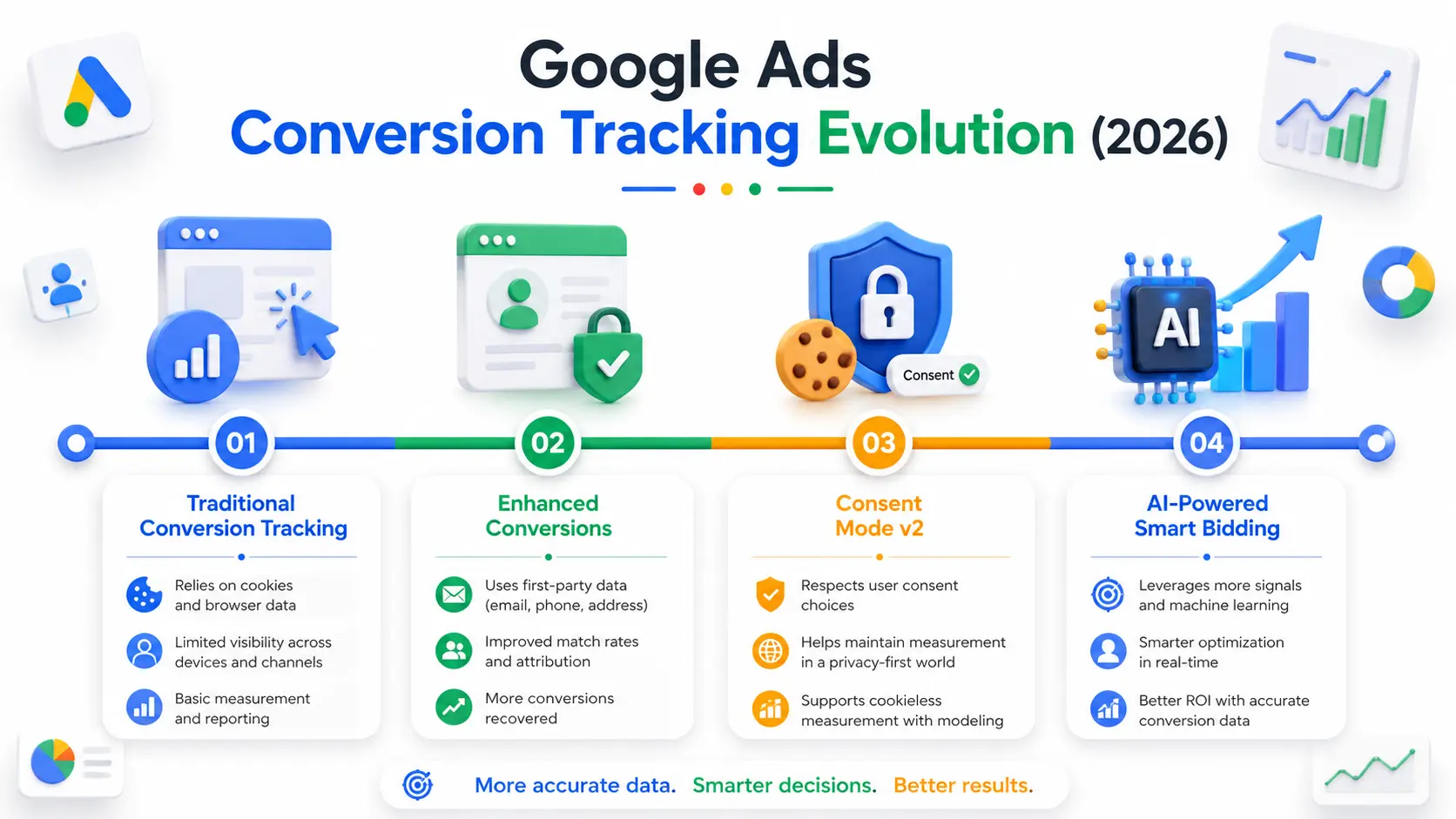
If you learned conversion tracking a few years ago, two shifts matter. First, enhanced conversions for web and enhanced conversions for leads have been combined into a single unified on/off setting, with existing accounts migrated automatically you no longer choose between implementation types. Second, privacy is now the default context, not an afterthought Consent Mode v2 has been required for EEA and UK traffic since 2024, and Google Analytics 4 refers to what used to be called “conversions” as “key events.” Any guide that ignores these is out of date.
Understanding UTM Parameters
Before you start tracking conversions, it’s important to understand UTM parameters. While they don’t measure conversions directly, they help Google Analytics 4 (GA4) identify where your website visitors came from and which marketing campaigns brought them to your site.
A UTM parameter is simply a small piece of text added to the end of a URL. These parameters pass campaign information to analytics tools without affecting how the webpage works.
For example: https://example.com/signup?utm_source=facebook&utm_medium=paid_social&utm_campaign=summer_sale
In this example:
- utm_source tells you where the visitor came from (Facebook).
- utm_medium identifies the marketing channel (Paid Social).
- utm_campaign specifies the campaign name (Summer Sale).
UTM parameters are especially useful when you’re running campaigns across multiple platforms such as Google Ads, Meta Ads, email newsletters, LinkedIn, or QR codes. Instead of seeing traffic as generic “Direct” or “Referral,” you can clearly identify which campaign generated each visit.
Why UTM Parameters Matter for Conversion Tracking
Conversion tracking tells you what users did after clicking your ad, while UTM parameters help explain where those users came from. Together, they provide a complete picture of your marketing performance—from the traffic source to the final conversion.
A well-structured UTM strategy also improves your GA4 Acquisition reports, making it easier to compare campaign performance and understand which marketing channels generate the highest-quality conversions.
Before You Start: Choose Your Installation Method
There are three common ways to get conversions into Google Ads. Pick one deliberately rather than defaulting to whatever a tutorial shows:
- Google Tag (gtag.js) — code placed directly in your site header. Simplest, but harder to manage as you add tags.
- Google Tag Manager (GTM) — recommended for most accounts. A container fires tags via triggers, so you rarely touch site code again.
- GA4 key-event import — useful when you want a single source of truth. Note that GA4-imported events do not support enhanced conversions, so most performance-focused accounts use a native conversion action instead.
Step 1: Create Your Conversion Action
In Google Ads, go to Goals → Conversions → + New conversion action. Choose the action type (website, phone calls, app, or imports), then define the specific event you want to count — a purchase, form submission, sign-up, or call. Set the conversion category, assign a value (a fixed amount or a dynamic value passed from your site), and configure counting: use “Every” for purchases and “One” for leads. Finally, confirm your attribution model data-driven attribution is the 2026 default and is more accurate than last-click for most advertisers.
Step 2: Install the Tracking Tag
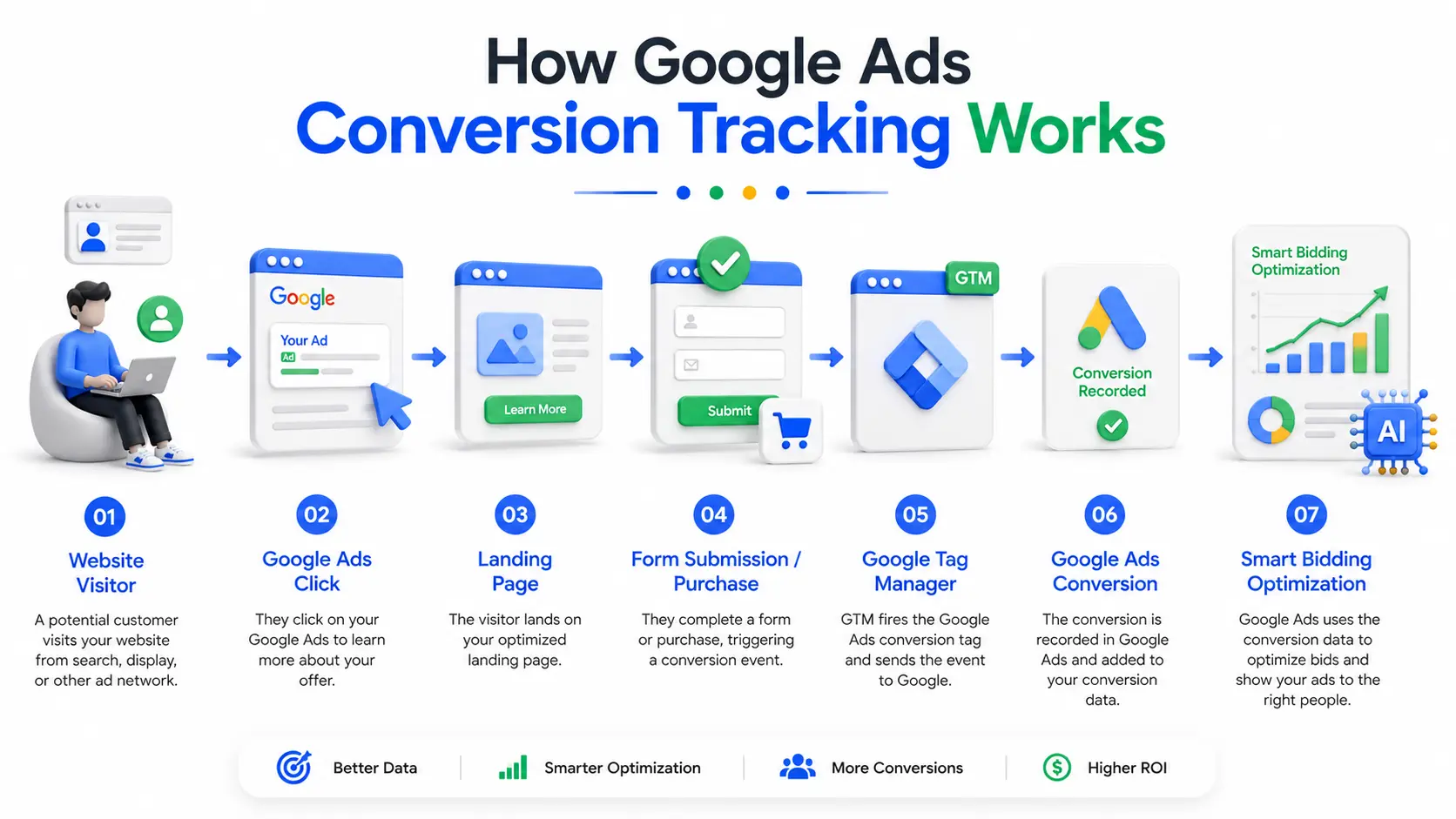
This is where most setups quietly break. If you are using GTM, create a Google Ads Conversion Tracking tag, paste in the Conversion ID and Label from Step 1, and critically fire it on a custom event trigger from your dataLayer, not on a page-URL match. Page-URL triggers double-fire on reloads and are the most common cause of inflated conversion counts seen in audits. For an e-commerce purchase, make sure your thank-you page already pushes a purchase event with transaction_id, value, and currency to the dataLayer before anything else.
If you are installing the Google Tag directly, place gtag.js in your site header and add the event snippet to the specific conversion page. If you are importing from GA4, link the accounts first, then bring in the relevant key events and make sure you are not also running a native tag for the same action, or you will count every conversion twice.
Step 3: Turn On Enhanced Conversions
Enhanced conversions recover attribution lost to ad blockers, cookie limits, and privacy changes by securely sending hashed first-party data like an email or phone number collected on your conversion page and matching it to signed-in Google accounts. Google’s published case studies report measurable lift in recorded conversions, typically in the range of a few to the mid-teens percent. With the unified 2026 setting, you simply open the conversion action, choose Enhanced Conversions, accept the terms, and select your method (GTM or the Google tag). When configuring user-provided data in GTM, prefer manual configuration over automatic detection to keep tighter control over compliance.
Step 4: Configure Consent Mode v2 (EU and UK Traffic)
If you serve any users in the EEA or UK, Consent Mode v2 is not optional it is required to keep measuring and remarketing compliantly. It communicates each visitor’s consent choices to Google’s tags. In advanced mode, Google uses modeling to recover a meaningful share of conversions from users who decline cookies, which can otherwise represent a large gap in your data. Implement it through your consent management platform and GTM, and confirm the consent signals fire before your conversion tag.
Step 5: Test and Verify Don’t Trust the Green Checkmark
A green status indicator in Google Ads only confirms that a conversion was reported not that it was correct, deduplicated, or attributable. Run three checks before you trust the data:
- Open GTM Preview or Tag Assistant, complete a real conversion, and confirm the conversion tag fires exactly once.
- Check the Diagnostics tab inside the conversion action to confirm Google is receiving the event and the tag is installed correctly.
- Cross-reference your numbers against GA4 small differences are normal due to attribution, but large gaps signal a problem.
Common Mistakes to Avoid
- Double-counting — running both a GA4 import and a native tag as primary for the same action.
- Page-URL triggers — use dataLayer custom events instead to avoid inflated counts on reloads.
- Missing dataLayer values — if transaction_id and value aren’t present, every conversion path fails silently.
- Skipping enhanced conversions — leaving measurable, recoverable conversions on the table in a privacy-first environment.
Frequently Asked Questions
Is Google Ads conversion tracking free?
Yes. Conversion tracking is included free with every Google Ads account. There is no separate cost to create conversion actions, install the tag, or enable enhanced conversions — you only pay for ad clicks and impressions.
Should I use the Google Tag or Google Tag Manager?
Google Tag Manager is recommended for most setups because it centralizes your tags and triggers without repeated code edits. The Google Tag (gtag.js) works fine for simple sites but becomes harder to manage as you add more tracking.
Do I really need enhanced conversions in 2026?
For most advertisers, yes. Enhanced conversions recover attribution lost to cookie restrictions and ad blockers by matching hashed first-party data to Google accounts. With privacy standards tightening, it is now closer to essential than optional for accurate measurement.
Why are my conversions showing inflated numbers?
The usual culprit is a page-URL trigger that double-fires on page reloads, or a GA4 import and native tag both counting the same action. Switch to a dataLayer custom-event trigger and set duplicate actions to secondary rather than primary.
If you’re looking to build practical expertise in Google Ads, GA4, GTM, and conversion tracking, consider enrolling in a Digital Marketing Course in Trivandrum to gain hands-on experience with real-world campaign setup and optimization.


