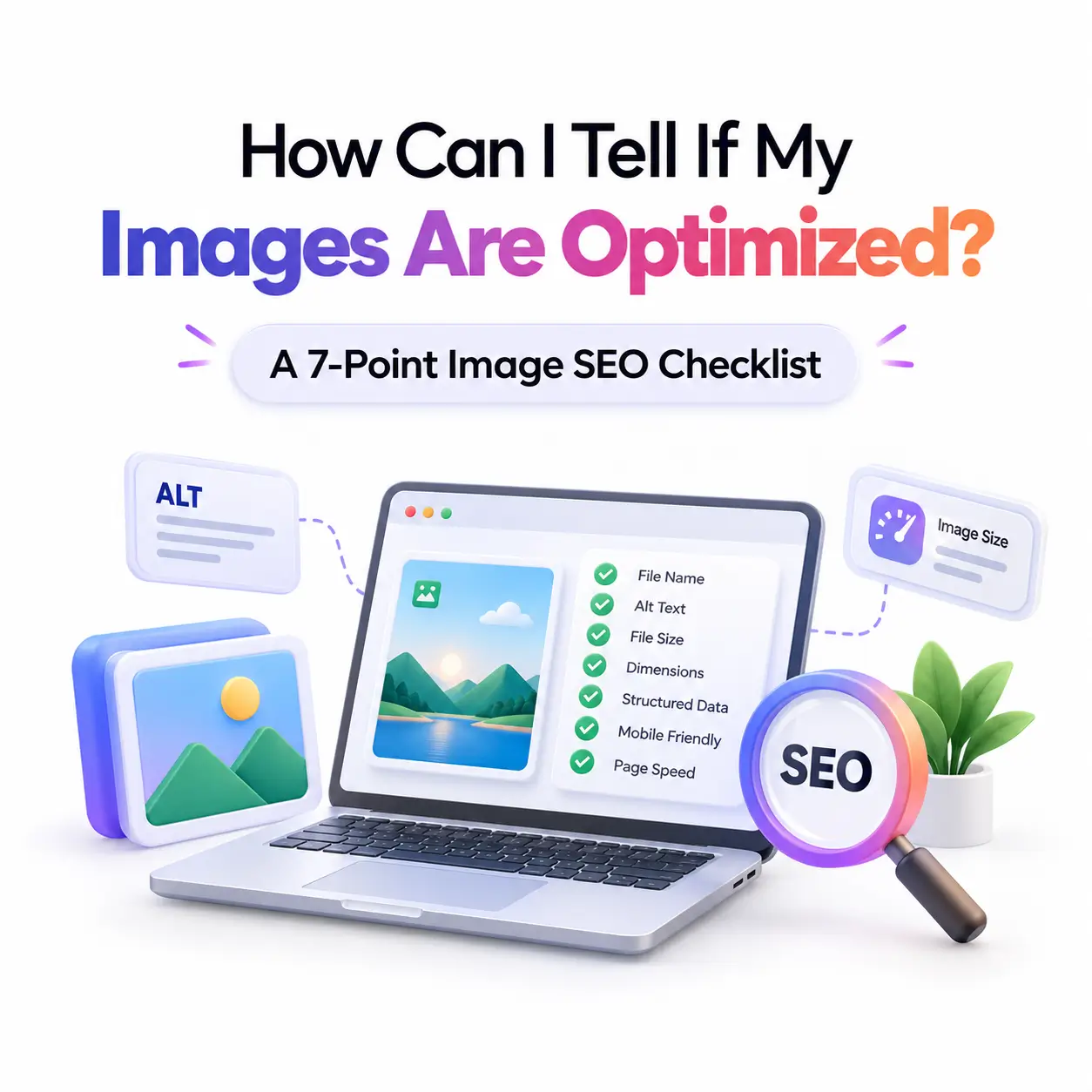
Picture someone snapping a photo of a sofa in a café, opening Google Lens, and asking, “Where can I buy this?” Whether your product photo appears in that moment depends on how well search engines can understand your image. If you want to optimize images for multimodal search, the good news is that you can find out where you stand in under an hour. This guide gives you a seven-point image health check, plus a brand-new Search Console report that shows whether image-led searches already reach your pages. No technical background required. To make this easier, we’ve created a simple image SEO checklist that helps you evaluate image quality, alt text, file formats, structured data, and overall visibility in Google Search
What Is Multimodal Search and Why Do Your Images Matter?
What is multimodal search?
Multimodal search lets people combine different inputs, such as a photo, text, and voice, in a single query. Point your camera at a jacket and ask where to buy it, and the search engine reads both the picture and your words, then returns results that match both.
Visual search vs. multimodal search

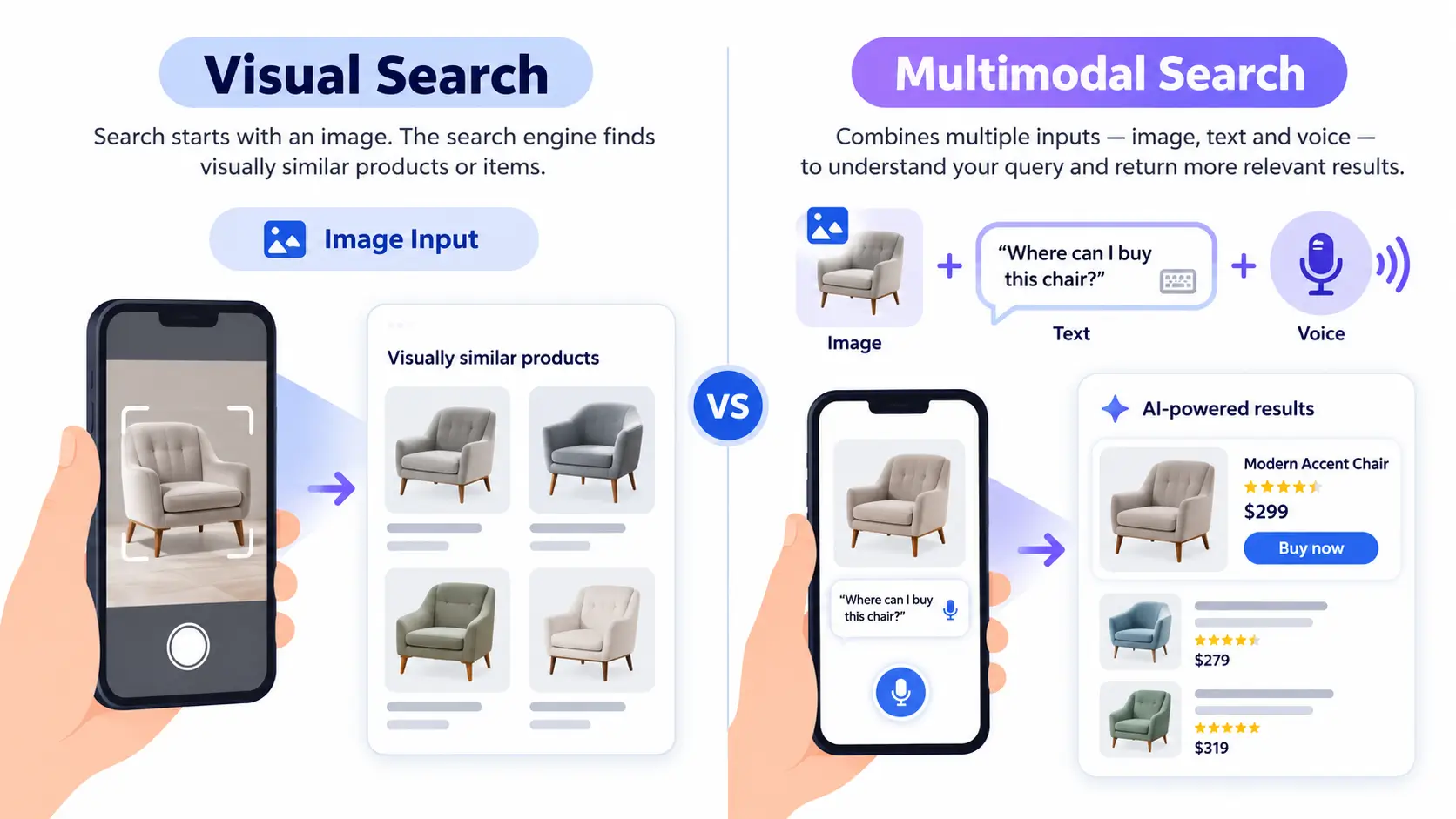
Visual search starts with an image, like uploading a photo to find similar products. Multimodal search is the broader category, blending images with text, voice, or video. Visual search is one flavor of it.
Where your images appear
Your images can surface in Google Lens, Circle to Search on Android, image uploads to Google Search, Chrome’s right-click “Search this image” option, and AI-generated answers such as AI Overviews and AI Mode. The scale is real: Google has said Lens handles nearly 20 billion visual searches a month, and about one in five is shopping-related.
How Search Engines “Read” Your Images
They read pixels, not just file names
Modern multimodal AI breaks an image into visual pieces, reads embedded text with OCR, and notices which objects appear together. A blurry, low-contrast, or badly framed image can be misread or skipped, so an AI-driven result may describe your product wrongly or leave it out entirely. Search Engine Land’s guide to image SEO for multimodal AI explains this shift in more depth.
Why your page text still matters
Google uses alt text together with computer vision and the page’s content to work out what an image is about. The pixels, the metadata, and the nearby words should all tell the same story. When they disagree, your image becomes harder to place. If this is new to you, start with our complete guide to multimodal search first.
Your Image SEO Checklist: 7 Things to Check
Use this checklist on your most important pages. Each check has one quick test and one fix.
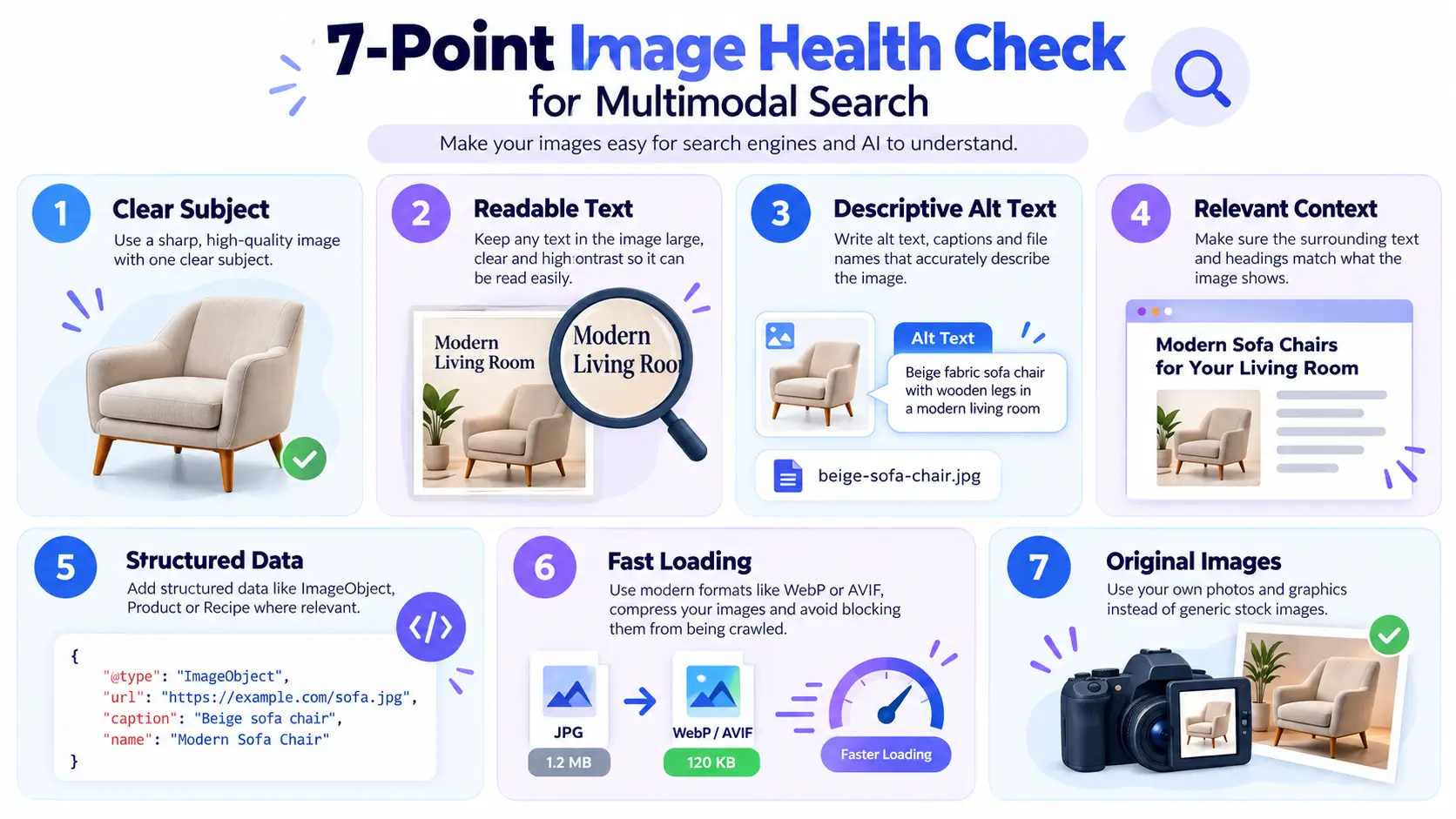
Check 1: Is there one clear subject, and is the image sharp?
Test: Can a stranger tell what the image shows within two seconds? Fix: Crop tightly, use good lighting, keep the background clean, and upload a high-resolution original. Official guidance gives no magic pixel minimum, so aim for an image comfortably larger than the size it is displayed.
Check 2: Is any text inside the image large and readable?
Test: Zoom out to thumbnail size. Can you still read the words on your infographic or chart? Fix: Make text large and high-contrast so OCR can read it, and repeat the key facts as normal text on the page.
Check 3: Do your alt text, captions, and file names describe the image?
Test: Read your alt text aloud. Would it help someone who cannot see the image? Fix: Write it as if you were describing the picture over the phone: “red leather sofa in a bright living room,” not “image” or a string of keywords. Rename IMG_4821.jpg to something like red-leather-sofa.jpg, and add a caption where it helps readers. Google’s own image best practices are worth bookmarking.
Check 4: Does the surrounding text match what the image shows?
Test: Look at the heading and paragraph closest to the image. Do they mention the same subject? Fix: Place each image in a section whose heading reflects what the image shows, so the picture and the words reinforce each other.
Check 5: Have you added structured data where it applies?
Test: Does the page describe a product, recipe, or how-to? Fix: Add ImageObject, Product, or Recipe markup where relevant. It is not mandatory, but it ties an image to its purpose. Make sure the markup always matches what visitors actually see.
Check 6: Is the file fast, modern, and crawlable?
Test: Run the page through PageSpeed Insights. Does a large image slow it down? Fix: Use modern formats like WebP or AVIF, compress without visible blur, and avoid hiding important images behind aggressive lazy loading or scripts that crawlers may not run.
Check 7: Is the image original rather than generic stock?
Test: Could a competitor use the exact same picture? Fix: Use your own photos and graphics, show products from several angles, and include real-life context. Original images give search systems something unique to match.
How to Measure It: Search Console and Quick Manual Tests
Step by step: find the multimodal filter in Search Console
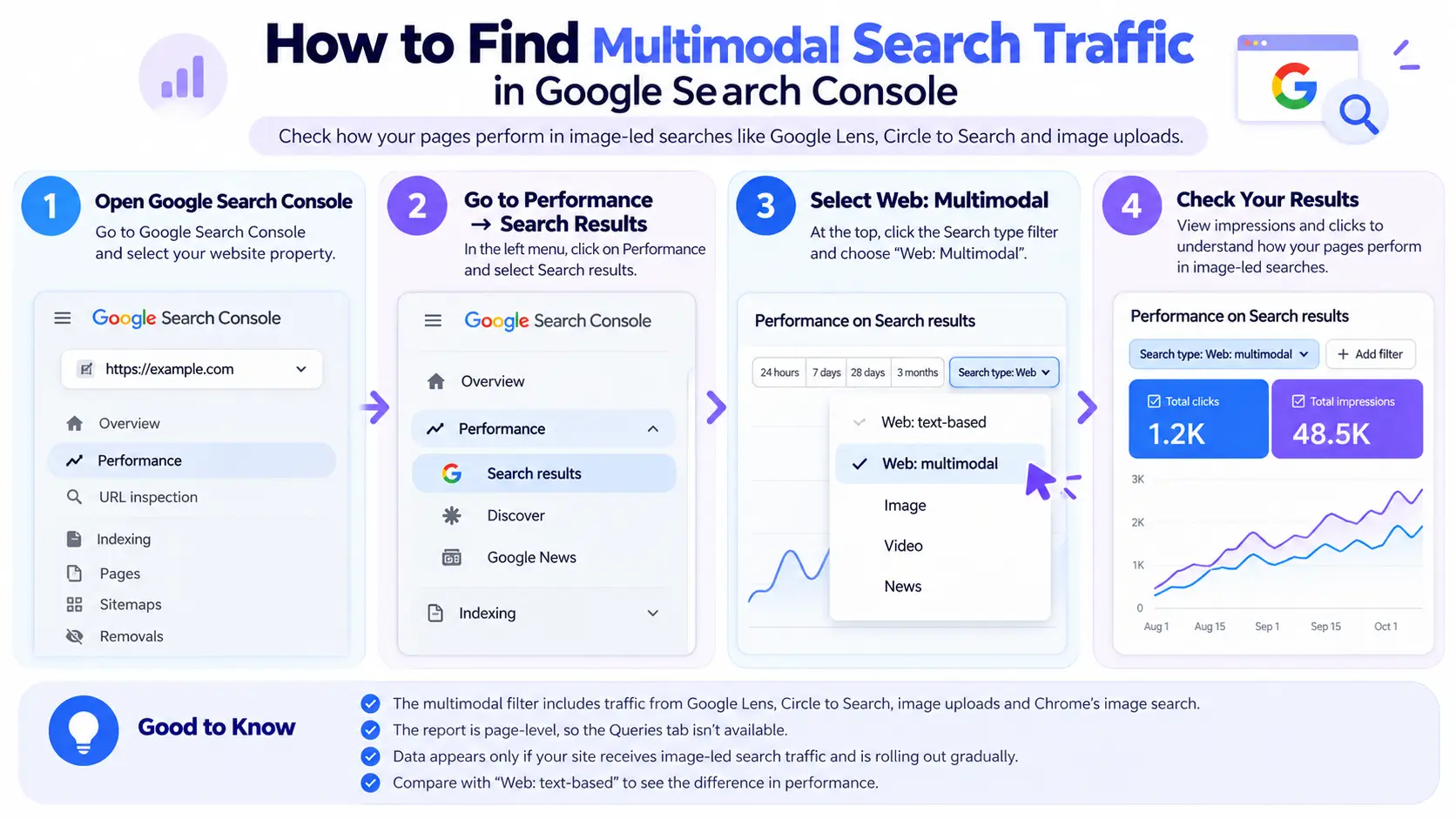
On September 24, 2026, Google added a multimodal filter to Search Console. It groups traffic from Lens, Circle to Search, image uploads, and Chrome’s image search. To find it:
- Open Search Console and choose your property.
- Go to Performance > Search results.
- Click Search type and choose Web: multimodal.
- Switch to Web: text-based with the same page filter and dates to compare.
- Open Performance > Generative AI and repeat the filter. This report shows impressions, so use Search results for clicks.
Search Engine Land has a helpful launch report on the new filter.
Three manual tests you can run in 10 minutes
- The Lens test: Upload your image to Google Lens. Does it recognize the right product or topic, and does your page appear?
- The vision-tool test: Run the image through a free vision or image-analysis tool. Does it detect the main object and read any text correctly?
- The “describe it blind” test: Give the image to a multimodal AI assistant with no context and ask it to describe what it sees. Pass if it names the right subject, reads the text, and identifies the product or topic.
How to read your results
An empty multimodal filter is not a bug. The data is rolling out gradually and only appears if your pages receive this kind of traffic. The report is page-level, so there is no Queries tab, and it bundles all entry points together. It also cannot show how often one specific image appears in an AI answer. Treat it as a visibility signal, and check it monthly.
Common Beginner Mistakes
- Stuffing alt text with keywords instead of describing the image.
- Baking important text into low-contrast images.
- Lazy-loading key images so they stay hidden from crawlers.
- Relying on generic stock photos everyone else uses.
- Assuming metadata alone is enough, when the pixels matter too.
Frequently Asked Questions
What is multimodal search?
Multimodal search lets people combine different inputs, such as a photo, text, and voice, in a single query. For example, someone can point a camera at a jacket and ask where to buy it. Search engines interpret the image and the words together, then return results matching both.
How can I tell if my images are optimized for multimodal search?
Check four things: the image is sharp with one clear subject, it has descriptive alt text and a caption, the surrounding text matches what the image shows, and the page loads quickly. Then open Google Search Console, filter Search type to Web: multimodal, and see whether your pages appear in image-led searches.
Does alt text still matter for multimodal search?
Yes. Alt text remains a core accessibility feature and gives search engines a text description of an image. But modern systems also analyze the pixels themselves, so alt text alone is no longer enough. Pair it with a sharp, relevant image and supporting copy nearby so the signals all agree.
What is the difference between visual search and multimodal search?
Visual search starts with an image, such as uploading a photo to find similar products. Multimodal search is broader: it combines images with text, voice, or video in one query, such as photographing a plant and typing “is this safe for cats?” Visual search is one type of multimodal search.
Where can I see multimodal search traffic in Search Console?
Open Performance > Search results, click Search type, and choose Web: multimodal. Google groups Lens, Circle to Search, image uploads, and Chrome’s “Search this image” under this label. The report is page-level, so you’ll see which pages appear, but the Queries tab isn’t available.
Do I need schema markup and special image formats?
Schema isn’t mandatory, but it helps. ImageObject, Product, or Recipe markup connects an image to its purpose and the page’s main entity. Use modern formats like WebP or AVIF, compress without visible artifacts, and keep important images loading normally rather than hiding them behind aggressive lazy loading.
Final Thoughts
Knowing whether your images are optimized for multimodal search comes down to two habits: check the image itself, and check your data. Run the seven-point health check, record your Search Console baseline, and fix the weakest images first. Start your audit today, and bookmark this checklist for your next review. Following this image SEO checklist regularly can help improve image accessibility, search visibility, and your website’s overall SEO performance. Want guided, hands-on practice with audits like this? Explore our digital marketing course in Thrissur.


